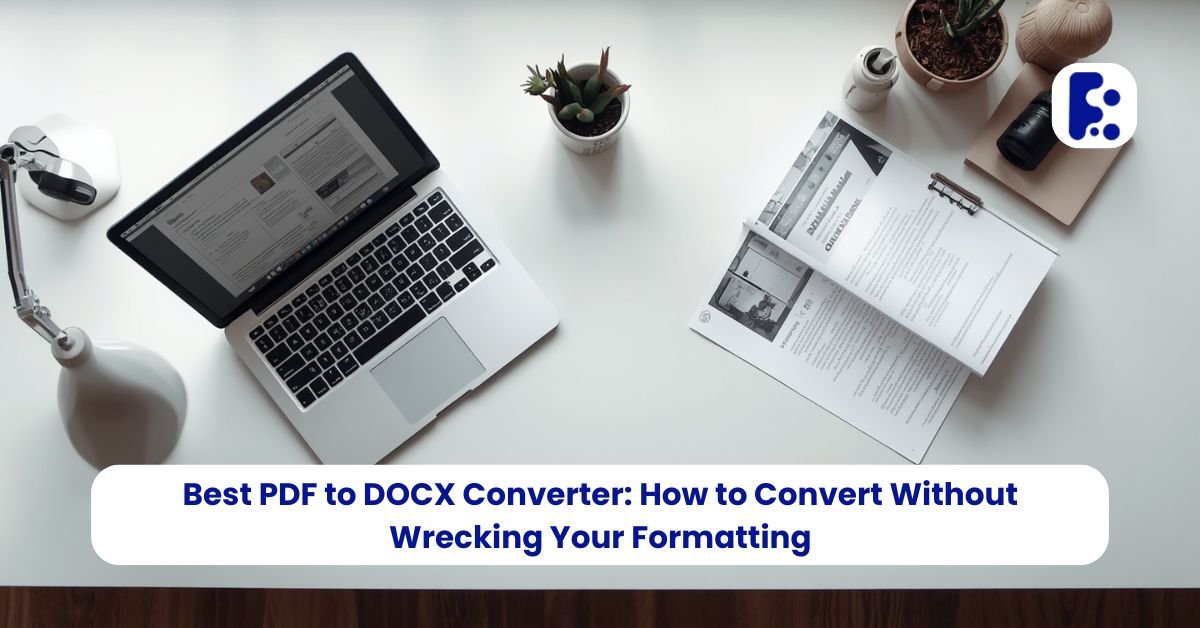
You know that moment when you convert a PDF to Word, open the result, and the whole document has turned into a jumbled mess? Text boxes floating in the wrong place, a table that's suddenly three columns instead of five, and a font that looks nothing like what you started with?
That's the number one complaint people have with PDF to DOCX converters, and it's completely fair. A good pdf to docx converter should hand you back a file that looks like the original - one you can actually edit, not one you have to rebuild from scratch.
Let's go through how to do this properly, and why some tools handle it better than others.
Why PDF to Word Conversion Goes Wrong

PDFs aren't built to be edited. They're built to look identical no matter what device opens them. That's great for sharing a finished report, but it means the file doesn't naturally "know" where one paragraph ends and a table begins. It just knows where each character sits on the page.
When a converter turns that into a DOCX file, it has to guess at the structure. Basic tools guess badly. That's where you get:
-
Paragraphs split into a dozen tiny text boxes
-
Tables that lose their borders or merge random cells
-
Fonts substituted with something close, but not quite right
-
Page breaks that land in strange places
Better converters analyze the layout more carefully before rebuilding it as an editable document, which is why the output quality can vary so much between tools.
How to Convert PDF to Word Without Losing Formatting
-
Use a converter built specifically for PDF to DOCX, like Fringe Tools' PDF to Word tool, rather than a generic "convert anything" tool.
-
Upload your PDF. No account needed just drop the file in.
-
Let it process. The tool detects text, tables, and images separately so they land correctly in the Word file.
-
Download the DOCX file and open it in Word, Google Docs, or LibreOffice.
-
Do a quick scan through the first and last page even the best converters can occasionally misplace a header or footer, so it's worth a 30-second check before you send it off.
Converting a Scanned PDF to Word
Here's where things get trickier. A regular PDF has actual text data behind it. A scanned PDF is really just a photo of a page; there's no text to extract, only pixels.
To convert a scanned PDF to Word, the tool needs OCR (optical character recognition), which reads the shapes of the letters in the image and turns them into real, editable text. Not every converter includes this, so if you're working with a scanned contract, an old scanned form, or a photographed page, check that OCR is part of the process before you upload — otherwise you'll get a Word document that's just an image pasted onto a page, which defeats the purpose entirely.
When You'd Actually Need This

Obtaining an editable version of a Word file from a PDF can be used in various simple situations, for example, in case of:
-
Exploiting the ease of editing the content of the resume that has been created in PDF format a long time ago.
-
Editing a contract clause before sending it back for review.
-
Reusing content from a report someone sent you as a PDF, without retyping every paragraph.
-
Filling in a form that wasn't built with fillable fields.
In all of these, the goal is the same: get from "locked PDF" to "editable Word doc" without spending twenty minutes fixing spacing afterward.
What Makes a Converter Actually Good
When you're comparing options, the real test isn't how fast it converts - most tools take a few seconds either way. It's what the output looks like when you open it:
-
Are paragraphs still paragraphs, or did they break into fragments?
-
Did tables keep their rows and columns?
-
Are images still positioned where they were?
-
Is the font reasonably close to the original?
If a tool checks those boxes consistently, it's worth bookmarking.
This is just one of many handy tools available for free at Fringe Tools - built to make everyday file tasks simple.