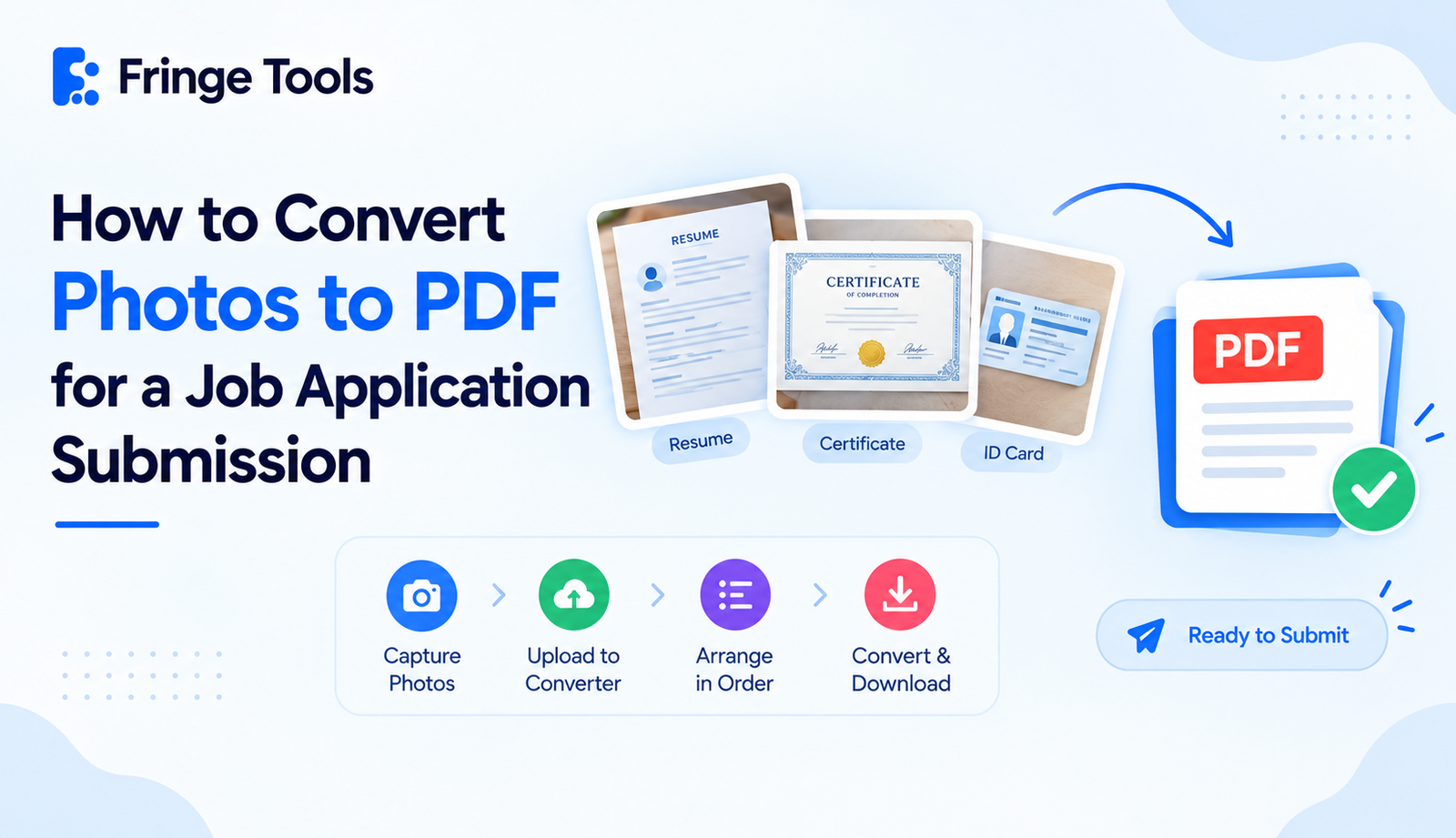
In short: If you want to convert photographs into PDFs for your job application, get distinct pictures of the necessary documents (resume, certifications, ID card), save them into a jpg-to-PDF converter tool, set them in the right sequence, and save in one PDF file.
This situation comes up constantly: a job portal, scholarship form, or government application says "upload PDF only," but all you have are photos of printed certificates, a photographed ID, or scanned pages from your phone. The fix is quick once you know the right order to do things in.
Why Applications Specifically Ask for PDF
Most application systems process uploads automatically, and PDFs behave consistently across devices - no cropping, no unexpected rotation, no formatting surprises. A photo, by comparison, can display differently depending on the device or app opening it. Requiring PDF just keeps everything predictable on the reviewer's end, which is also why submitting a proper PDF (rather than photos labeled "hope this works") tends to make a better first impression.
How to Convert Photos to PDF for an Application
-
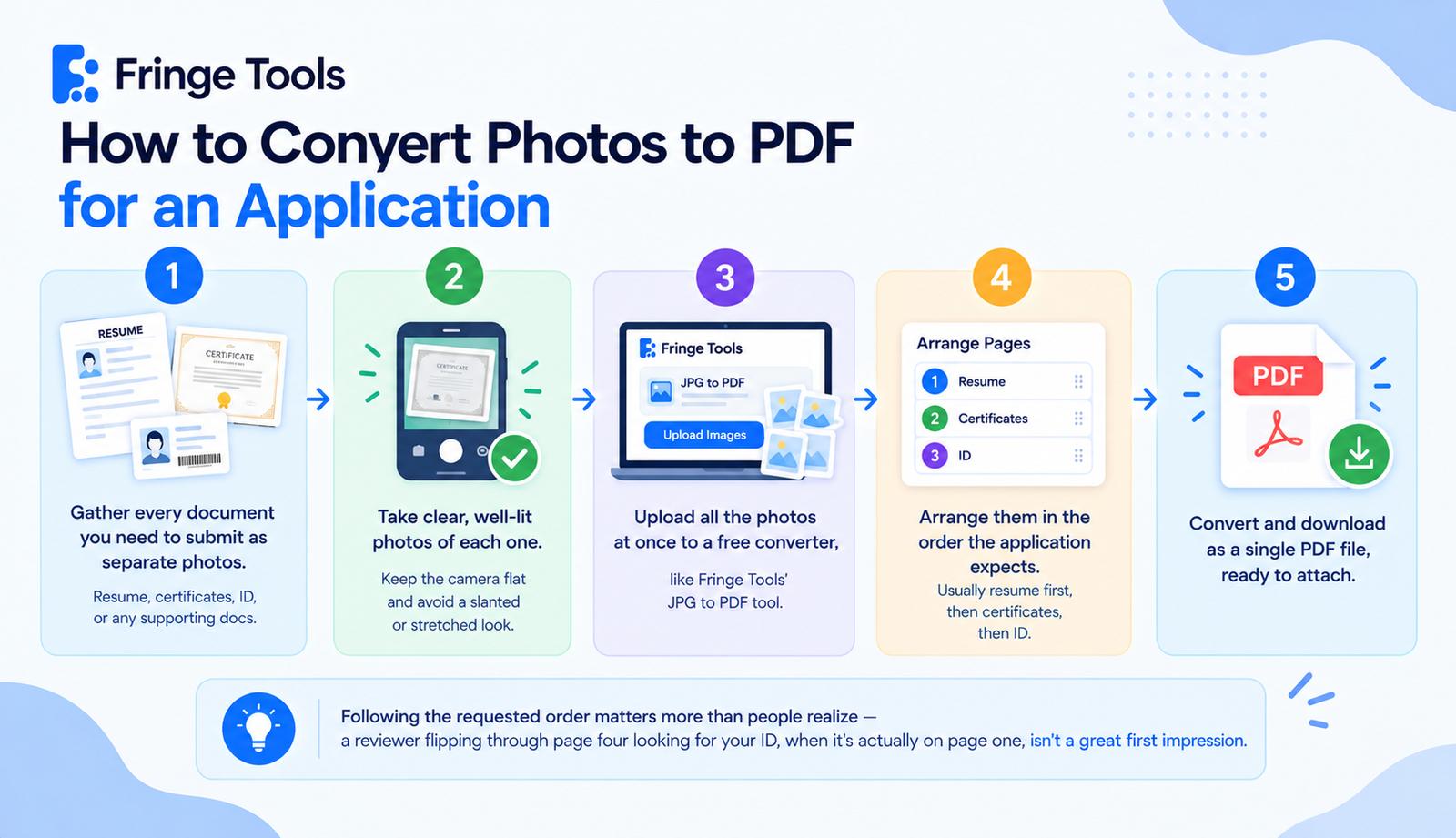
Gather every document you need to submit as separate photos - resume printout, degree certificate, ID, or any supporting documents the application requests.
-
Take clear, well-lit photos of each one, holding the camera flat above the document to avoid a slanted or stretched look.
-
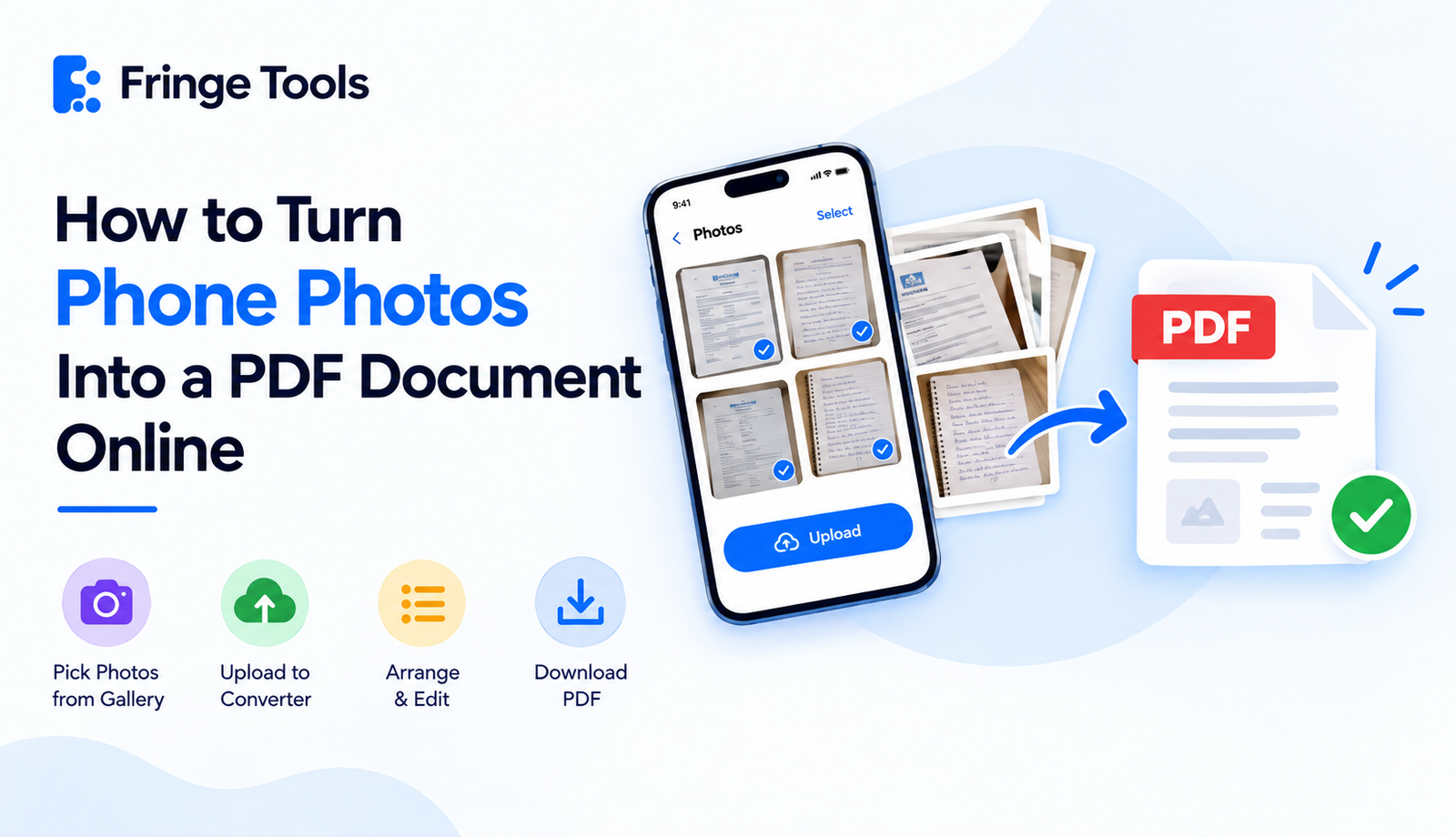
Upload all the photos at once to a free converter, like Fringe Tools' JPG to PDF tool.
-
Arrange them in the order the application expects commonly resume first, followed by certificates, then ID, but check the specific form's instructions if it lists an order.
-
Convert and download as a single PDF file, ready to attach.
Following the requested order matters more than people realize - a reviewer flipping through page four looking for your ID, when it's actually on page one, isn't a great first impression.
Converting Certificates and ID Photos Specifically
A couple of extra details worth checking for these specific document types:
-
Certificate photos should be sharp enough that any official seal, signature, or fine print is legible once converted - if it's blurry in the photo, it'll be blurry in the PDF too.
-
ID photos often need to show all four corners of the card or document clearly, since many application systems flag or reject cropped ID images.
-
Multiple certificates can go into one combined PDF if the application accepts a single file, or as separate PDFs if it asks for individual uploads per document type - check the form's requirements before combining everything into one file.
Converting Scanned Documents for School Applications
The same method applies almost exactly for school and university submissions - transcripts, admission forms, or supporting documents photographed at home rather than scanned on a proper scanner. If you don't have access to a scanner, a well-lit phone photo converted to PDF is a completely acceptable substitute for most school applications, as long as the text is legible and the whole page is visible in the frame.
Getting the File Size Right for Upload Portals
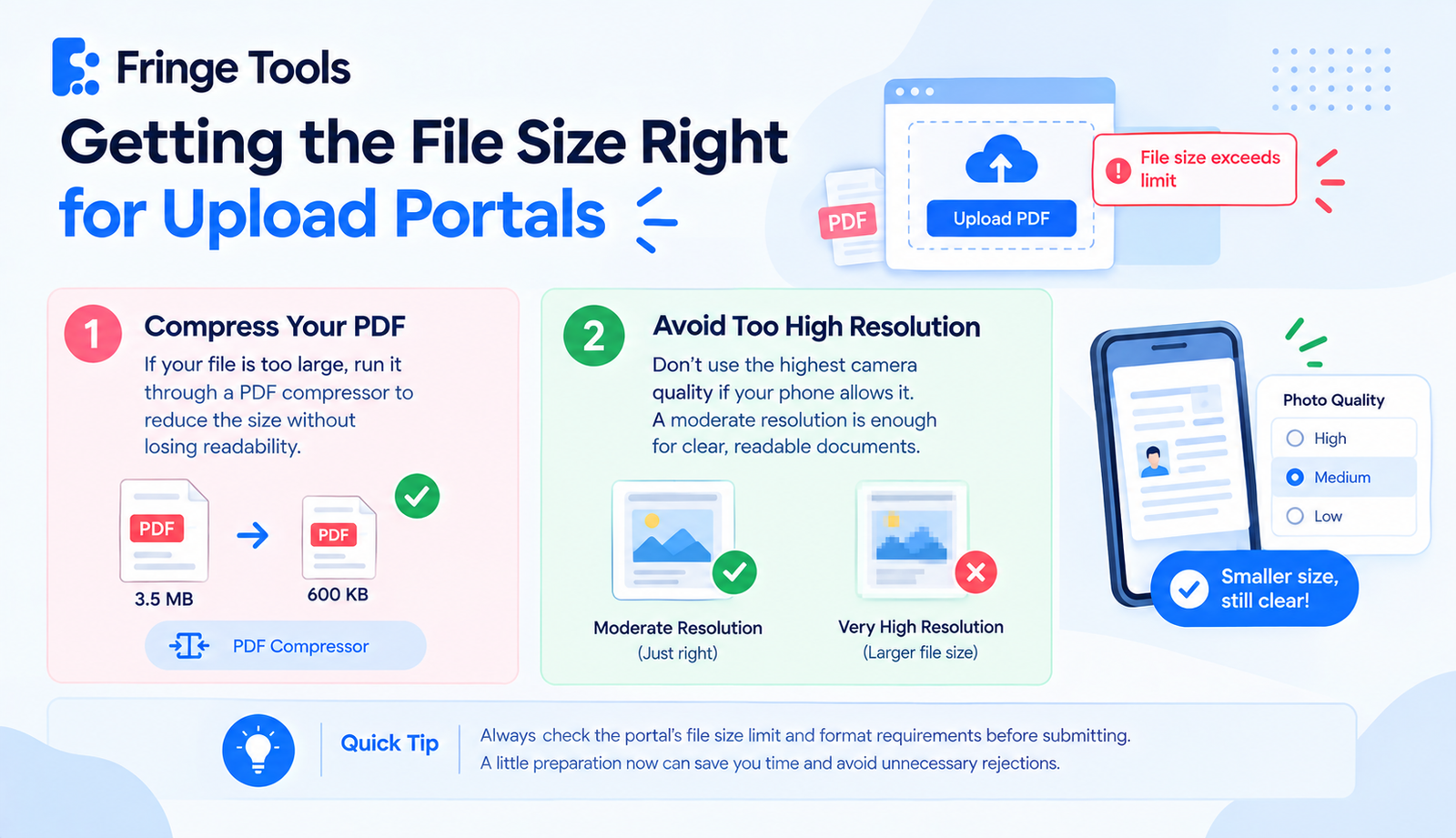
Application portals sometimes cap file size, in addition to requiring PDF format. If your combined PDF comes out too large after converting several high-resolution photos:
-
Run it through a PDF compressor afterward to bring the file size down without meaningfully affecting readability
-
Avoid photographing documents in extremely high resolution if your phone allows manual quality settings - a moderate resolution is more than enough for legibility
A Small Thing That Makes a Real Difference
Before submitting, open the finished PDF and actually look through every page, the way a reviewer would. It's an easy way to catch a sideways certificate, a missing page, or a blurry ID photo before it becomes the application reviewer's problem instead of yours.