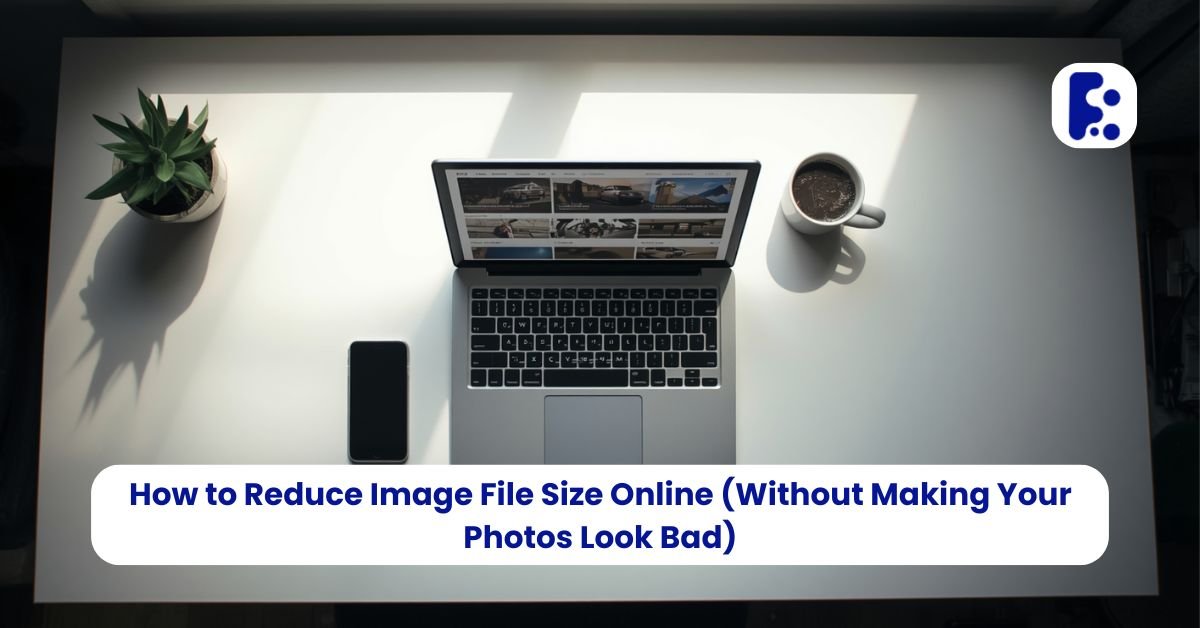
You've tried to upload a photo somewhere - an application form, an email attachment, a website media library and hit that annoying wall: "file too large." The photo looks perfectly normal on your screen, but somehow it's 8MB, and whatever you're uploading to only wants 2MB.
The good news is you don't need photo editing software to fix this. You just need to reduce image file size online, and it takes about ten seconds per photo.
Why Your Photos Are So Big in the First Place
Modern phone cameras capture a huge amount of detail - which is great for zooming in later, but overkill for almost everything else you actually do with a photo. A single image from a recent phone can easily be 4-12MB, especially if it was shot in a format like HEIC or a high-resolution RAW-adjacent format.
Most of that extra data is invisible to the human eye once the image is resized down for a screen, an email, or a web page. That's exactly what compression tools take advantage of they strip out the data your eyes won't notice missing, while keeping the parts that matter.
How to Reduce Image File Size Online for Free

-
Open a free online image compressor, like Fringe Tools' Image Compressor, directly in your browser.
-
Upload your image or images. Many tools support uploading several at once if you need a bulk image compressor for multiple files.
-
Choose your compression level. Some tools give you a slider between "smaller file" and "higher quality" - a moderate setting usually keeps images looking sharp while cutting size significantly.
-
Compress and download. You'll get a smaller version of the same image, often in seconds.
-
Compare before uploading elsewhere. Quickly check the compressed version still looks good at the size you'll actually be viewing it.
What Format Should You Actually Use?
This is where a lot of guides get overly technical, so here's the short version:
-
JPG is still fine for everyday photos and email attachments. It compresses well and every device can open it.
-
PNG is best when you need a transparent background or crisp text/graphics, but it produces much bigger files for regular photos.
-
WebP gives noticeably smaller files than JPG at similar quality, and pretty much every modern browser supports it - it's a solid default for anything going on a website.
-
AVIF compresses even further than WebP, which makes it a strong choice if you're specifically trying to optimize images for PageSpeed or Core Web Vitals scores, though a small number of older browsers still don't render it.
If you're just trying to reduce image size for an upload limit on a form or app, JPG or WebP will almost always get you there. If you're building a website and care about load speed, WebP (or AVIF with a fallback) is worth switching to.
Reducing Image Size for Upload Limits

A lot of the time, this isn't about website performance at all - it's a form somewhere refusing to accept your file. A few quick fixes:
-
Compress before resizing. Often compression alone gets you under the limit without needing to shrink the actual dimensions.
-
Check what format the form accepts. Some upload forms don't support WebP or HEIC yet, so converting to JPG first avoids a second error message.
-
Batch process if you have several images, rather than compressing one at a time a bulk image compressor saves a genuinely surprising amount of time if you're dealing with more than three or four files.
Optimizing Images for Website Speed
If your goal is a faster-loading website rather than just squeezing under an upload limit, a couple of extra things matter:
-
Resize to the actual display size. A 4000px-wide photo displayed at 800px wide is wasted data - resize before compressing for the best results.
-
Pick the right format for the content. Photos compress best as JPG/WebP/AVIF; logos and icons with flat colors or text usually look better and smaller as PNG or SVG.
-
Don't over-compress. Squeezing an image too hard introduces visible blotchy artifacts, especially around sharp edges - a moderate compression setting is usually the sweet spot.
Explore more free, easy-to-use tools like this one over at Fringe Tools - no sign-up, no software, just quick fixes for everyday file tasks.