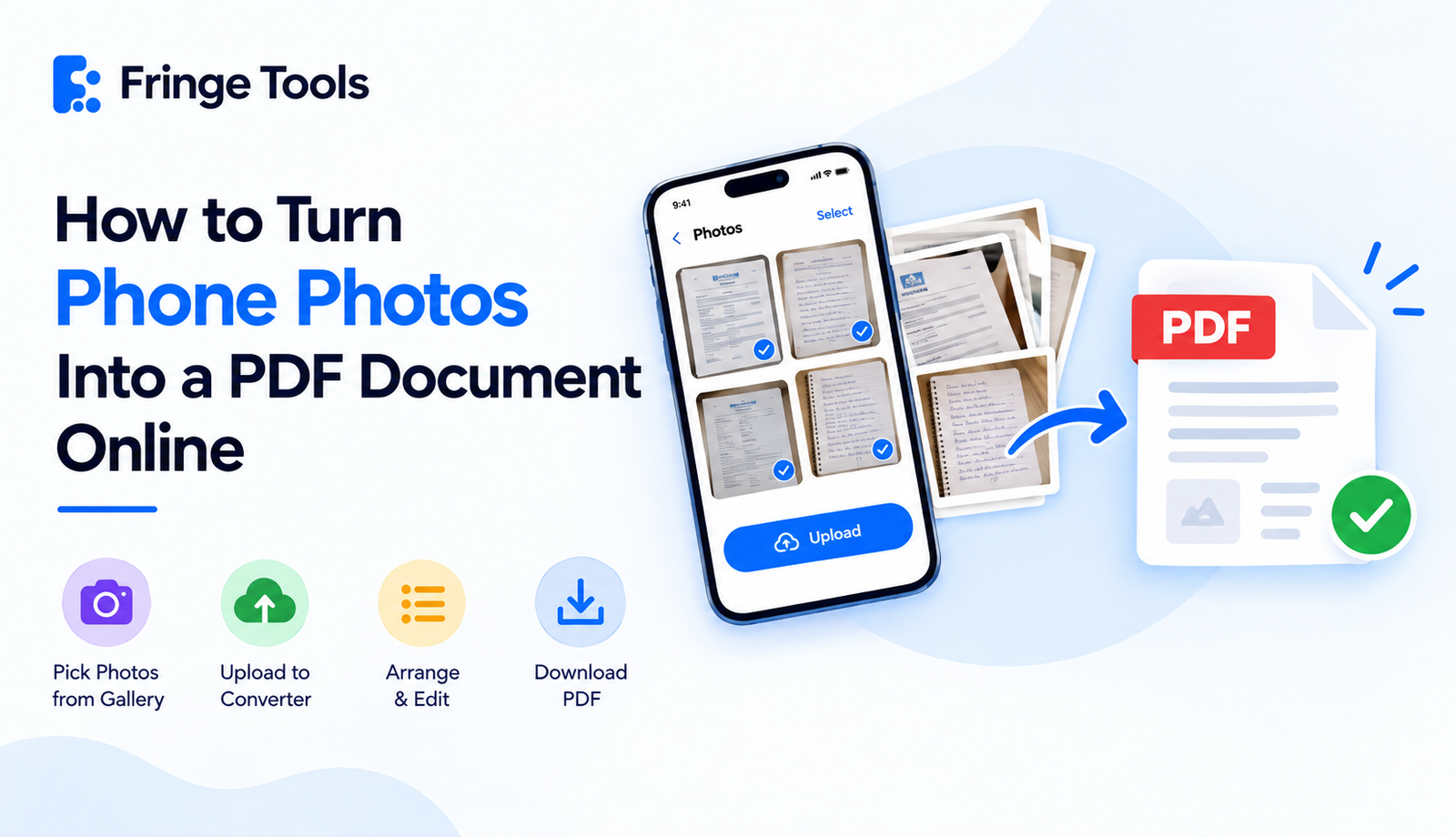
Quick answer: To turn phone photos into a PDF document online, open a browser-based JPG to PDF converter on your phone, upload the photos directly from your gallery, arrange them in order, and download the finished PDF. The entire process happens in the browser, so no app installation is needed.
This usually comes up in the middle of doing something else — you've just photographed a form, a page from a notebook, or a document someone handed you, and now you need it as one proper PDF instead of a handful of loose images sitting in your camera roll.
Why This Is Trickier on Phone Than on a Computer
On a computer, you'd normally just drag files into a folder or a converter without thinking twice. On a phone, the experience is a little more scattered — photos live in your gallery, PDFs tend to end up buried in a downloads folder or a Files app, and switching between apps to combine the two isn't always obvious.
That's exactly what a browser-based converter solves: it treats your phone's gallery as the file source and hands you back a finished PDF, without needing you to bounce between separate apps to get there.
How to Convert Phone Gallery Photos to PDF
-
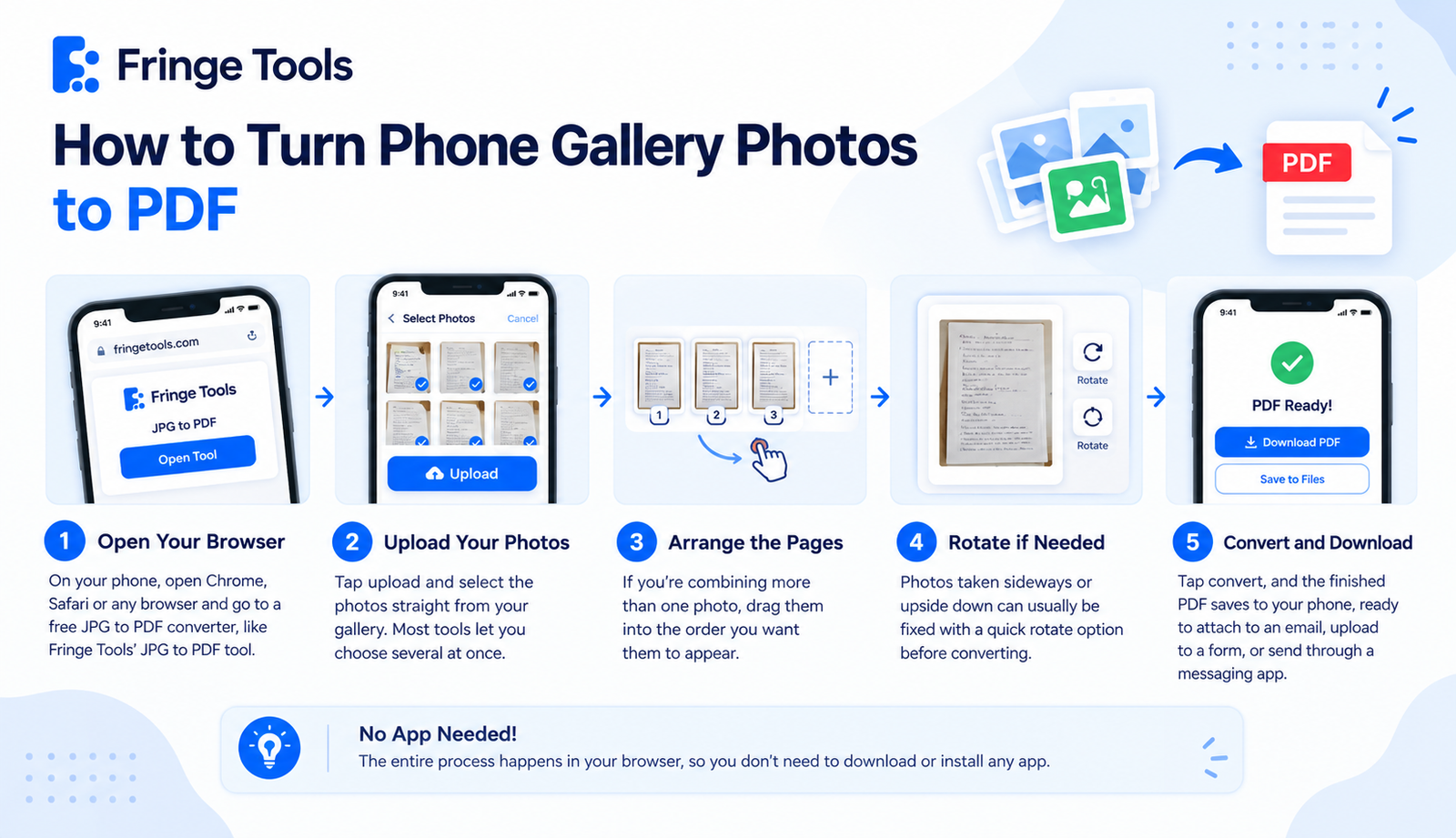
Open your phone's browser (Chrome, Safari, or whatever you normally use) and go to a free JPG to PDF converter, like Fringe Tools' JPG to PDF tool.
-
Tap upload, and select the photos straight from your gallery. Most tools let you select several at once.
-
Arrange the pages if you're combining more than one photo — drag them into the order you want them to appear.
-
Rotate if necessary. Photos taken sideways or upside down can usually be fixed with a quick rotate option before converting.
-
Convert and download. The finished PDF saves to your phone, ready to attach to an email, upload to a form, or send through a messaging app.
Turning Camera Photos Into PDF Instantly, Without an App
The word "instantly" matters here because a lot of people assume this requires downloading a dedicated app first. It doesn't. As long as you have a browser, you have everything you need — there's no app store detour, no waiting for a download, and nothing left behind on your phone once you're done.
This is especially useful in situations where you need something converted right away:
-
You're standing in front of someone who needs the document immediately
-
You're filling out a form that requires a PDF upload and you only have a photo
-
You're sending something urgent and a string of separate image attachments won't cut it
A Quick Way to Get a Clean Result From Your Phone
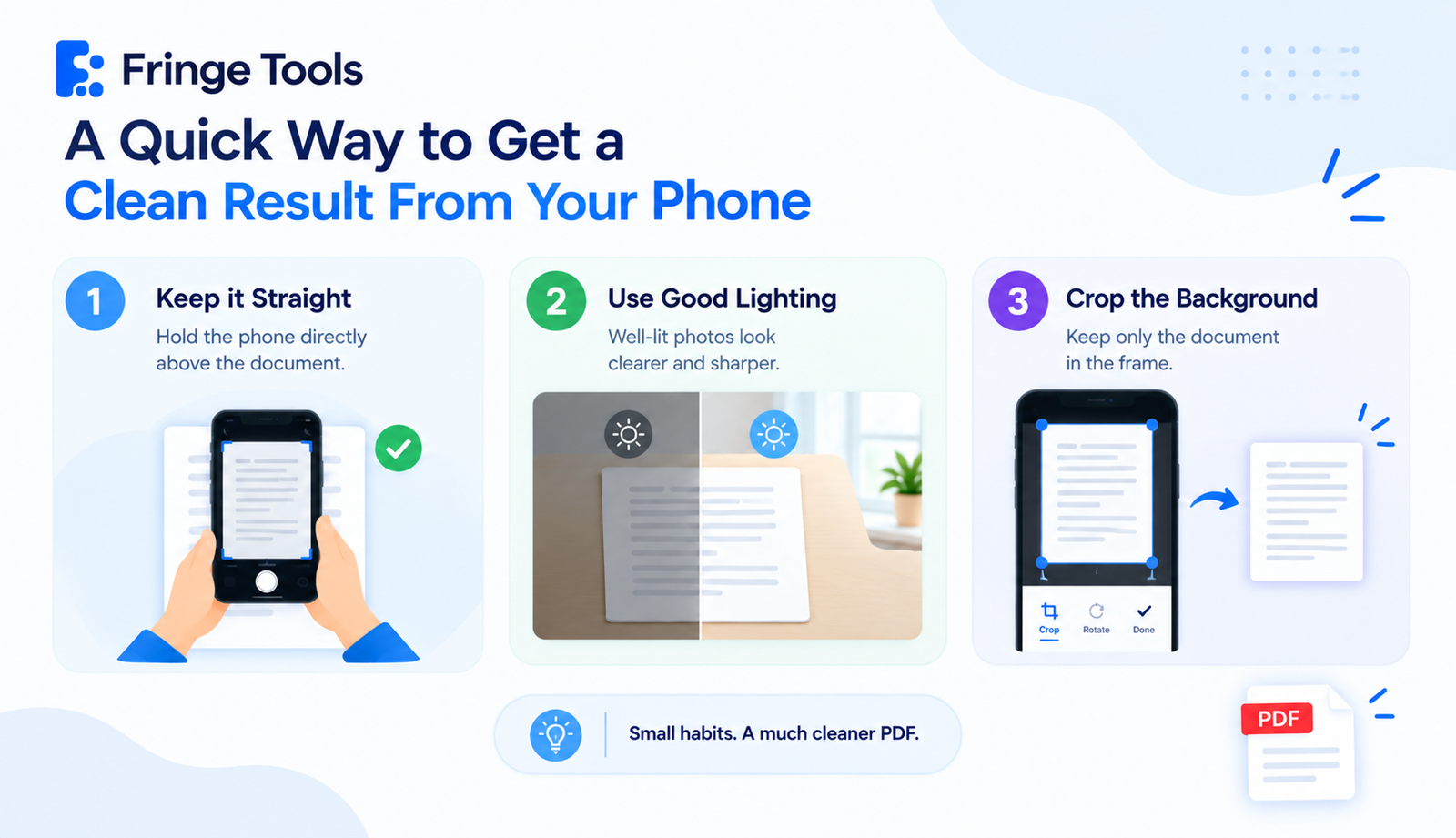
Phone photos convert to PDF just fine, but a couple of small habits make the final document look noticeably more professional:
-
Hold the phone directly above the document, not at an angle, so the page doesn't come out looking slanted or stretched
-
Use good lighting — a dim photo compresses and converts fine, but it'll look noticeably worse than one taken near a window or under decent light
-
Crop out the background before uploading, if your tool allows it, so the final PDF looks like an actual document rather than a photo of a table with a paper on it
When You'd Use This Over Emailing Photos Directly
Sending raw photos works in a pinch, but a proper PDF is the better move when:
-
The recipient specifically asked for a PDF, not images
-
You're combining more than one photo into a single, ordered document
-
You want the file to open and print consistently, without one photo displaying huge and another tiny
-
You're submitting to a form or portal that only accepts PDF uploads