You just took ten photos of a handwritten form, a receipt, or pages from a document someone handed you on paper. Now you need to email it, and "ten separate JPG attachments" is not a professional look. What you actually need is one clean PDF with all those images in order.
That's exactly what a jpg to pdf converter free tool does, and it's a lot faster than most people expect.
Why Convert JPG to PDF in the First Place
PDFs are just easier to work with once you're past "I took a picture of something." A PDF:
-
Opens the same way on every device, without cropping or resizing oddly
-
Keeps multiple pages in one file instead of scattered images
-
Looks more professional for job applications, ID submissions, or official paperwork
-
Is easier to print correctly, since PDFs handle page sizing better than raw images
If you've ever tried to print six JPGs and had one come out stretched across two pages, you already know why this matters.
How to Convert JPG to PDF for Free
-
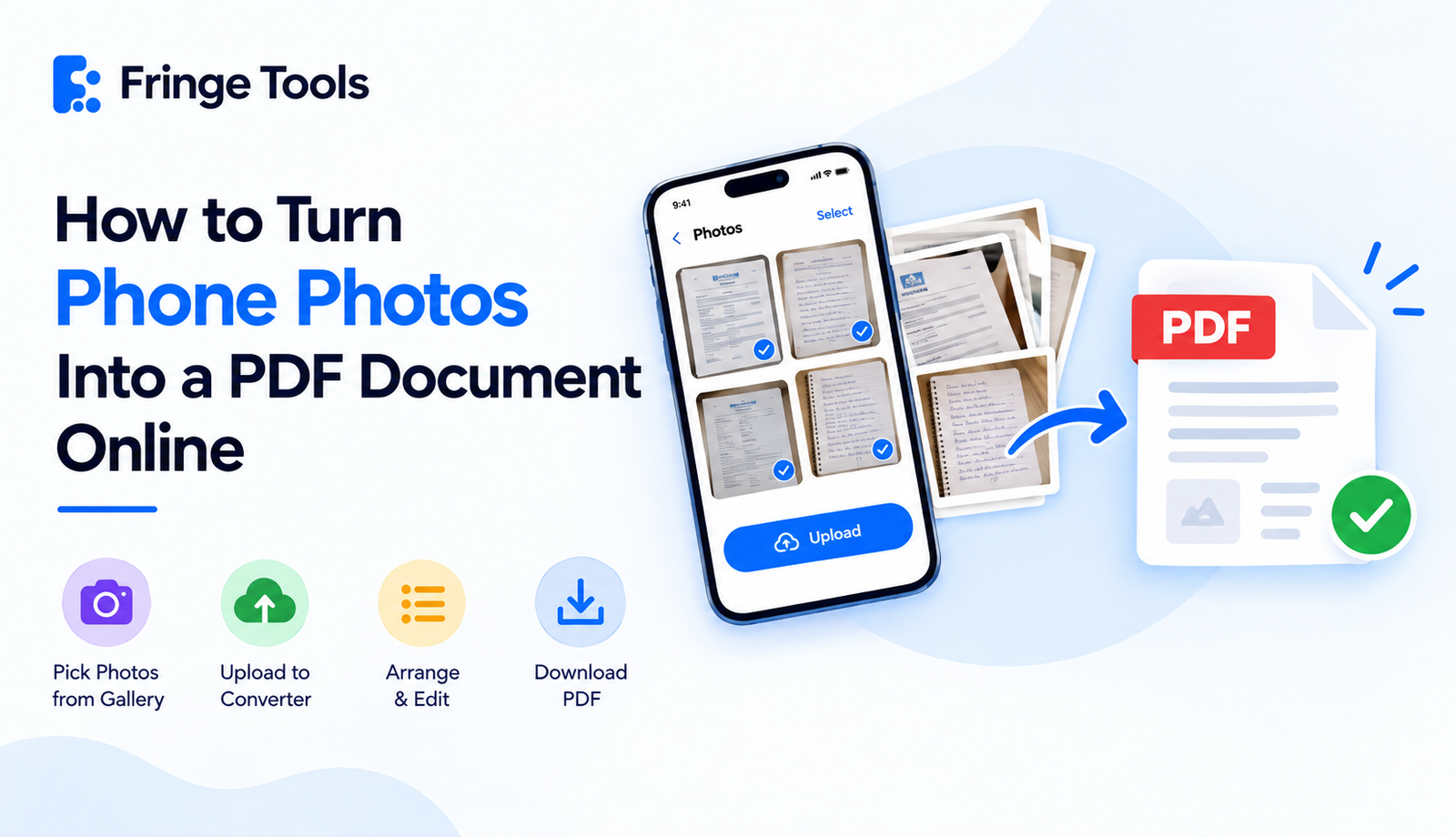
Open a free JPG to PDF tool, like Fringe Tools' JPG to PDF converter, directly in your browser.
-
Upload your images. You can usually select several at once instead of doing them one by one.
-
Arrange the order. If you're combining multiple photos into one PDF document, drag them into the sequence you want the pages to appear.
-
Adjust orientation if needed. Some tools let you rotate individual pages before finalizing.
-
Convert and download. You'll get one PDF file containing every image as a separate page, in the order you set.
Converting on iPhone or Android
You don't need a computer for this. To convert jpg to pdf on iPhone or Android, you have two solid options:
Using your phone's browser: open a free online converter, upload directly from your photo gallery, arrange the pages, and download the finished PDF straight to your device.
Using built-in phone features: both iPhone and Android have some native support for turning photos into PDFs (through the Files app on iPhone, or the print-to-PDF option on Android), but these are often clunkier for combining multiple images into a single ordered document. A dedicated converter usually gives you more control over page order and orientation.
Common Situations Where This Comes Up

-
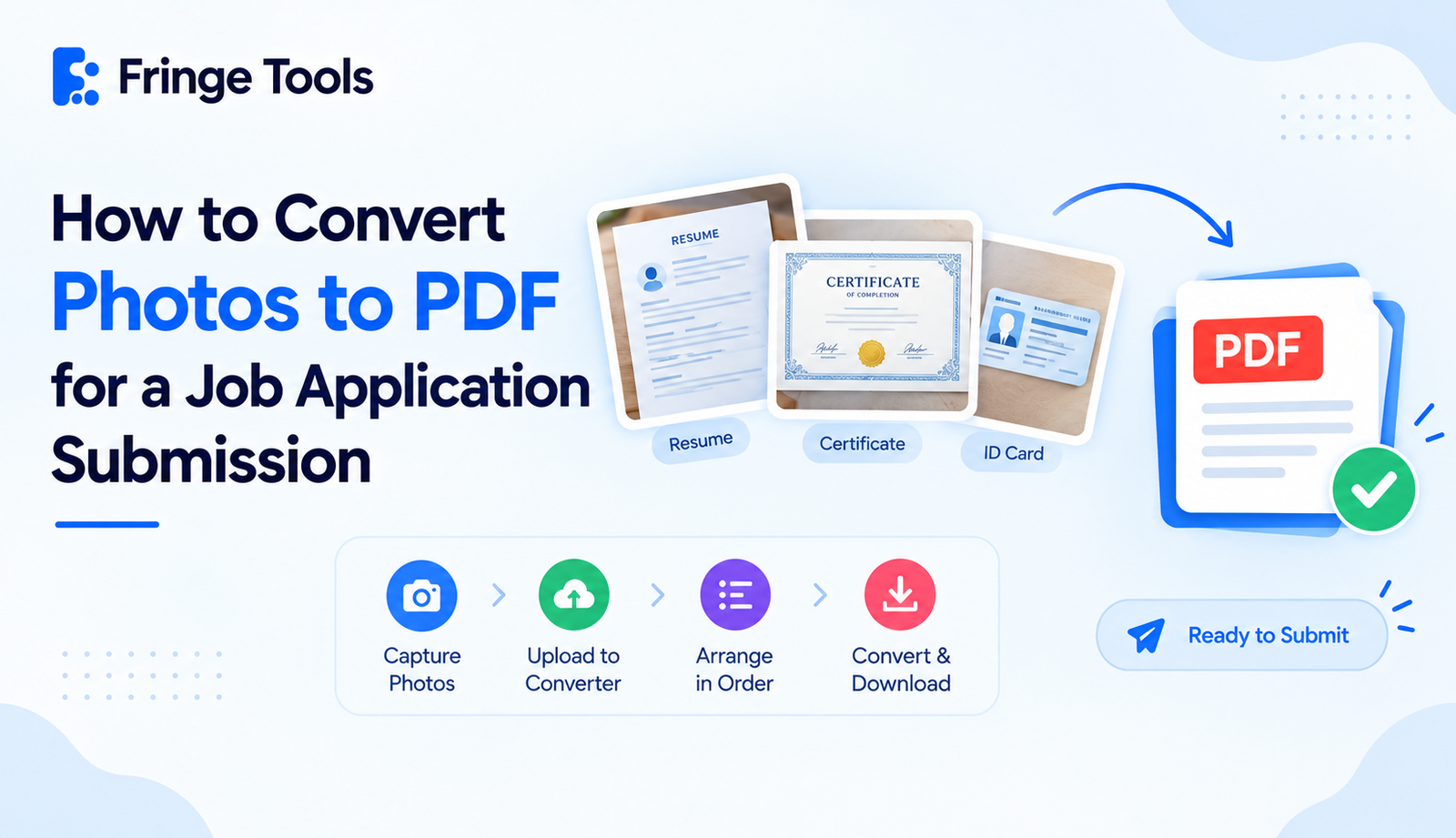
Submitting ID or documents for a form, application, or verification process that only accepts PDF uploads.
-
Turning receipts into one PDF for expense reports instead of attaching a dozen photos.
-
Combining photos into a PDF document for a school assignment or scanned handwritten notes.
-
Sending a signed page you photographed instead of scanned, formatted properly as a PDF.
-
Archiving photos of physical documents in a format that won't degrade or get mixed up in a camera roll.
Getting a Clean Result
A few small habits make the output noticeably better:
-
Take photos in good lighting and hold the camera flat above the document. Angled shots create distorted-looking pages once converted.
-
Crop out background clutter before uploading if your tool allows it, so the final PDF looks like a proper document, not a photo of a table.
-
Double-check page order before converting, especially if you're combining more than three or four images - it's much easier to fix order before conversion than after.
Looking for more tools like this? Fringe Tools has a full set of free PDF, image, and calculator tools ready whenever you need them